Project
- Stars
- Started
- Issues
- License
Customize your TV with a compatible open-source launcher
Guides Claude Code through identifying your TV, comparing four open-source interfaces, installing your choice with approval, and verifying operation and rollback.
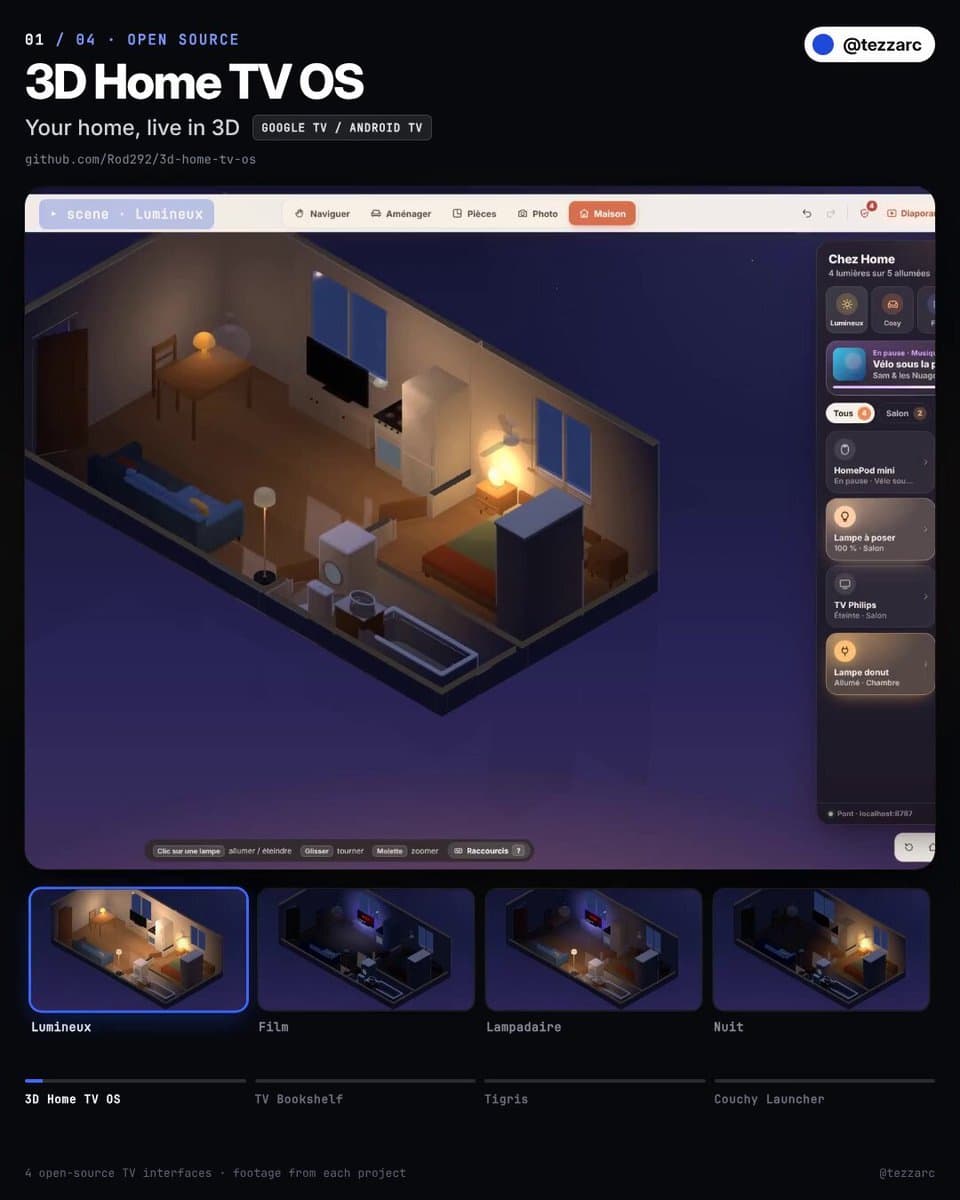
You are my Smart TV customization engineer. I want to replace or customize my TV's home screen using one of these four open-source projects: 3D Home TV OS https://t.co/EVisUV3vAz TV Bookshelf https://t.co/vaU2iwjSzW Tigris https://t.co/oKrYGjKxzA Couchy Launcher https://t.co/Prgz8WpPve Your job is to identify my TV, determine which projects are actually compatible, and help me install or adapt my preferred interface safely. Do not assume every Smart TV runs Android. STEP 1 — IDENTIFY MY TV Ask me for: My TV brand and exact model, or a photo of its model label. My TV's OS and firmware version, if known. Whether I'm using Windows, macOS, or Linux. Whether my TV and computer share a local network. Whether I want a 3D, Apple-like, minimalist, or custom interface. Identify whether my TV runs Android TV, Google TV, Samsung Tizen, Samsung pre-Tizen, LG webOS, Apple tvOS, or another system. STEP 2 — RESEARCH COMPATIBILITY Read the current README, installation documentation, release notes and known issues for all four repositories. Compare their minimum OS requirements, hardware requirements, available releases, installation methods and known limitations. Important: Tigris targets Android TV, with official APK support starting at Android 9. TV Bookshelf targets Android TV and may require building from source. Couchy targets Android TV / Google TV, Android 5.0+. 3D Home TV OS is a larger project requiring a compatible TV, a running local bridge and additional hardware for real smart-home control. For the 3D option, ask whether I have smart lights, Home Assistant, Hue, a suitable always-on computer, and an iPhone with LiDAR or another way to build a floor plan. If I own a Samsung Tizen, pre-Tizen, LG webOS or other unsupported TV, explain why these Android launchers cannot simply be installed. Consider an external Android TV / Google TV streaming device where appropriate. Never claim native compatibility without evidence. STEP 3 — HELP ME CHOOSE Present the compatible options with: How each interface looks. What features actually work. Setup difficulty. Additional hardware or software required. Known limitations. Whether the original home screen can be restored. Recommend the best fit for my TV and preferences. Wait for my choice before installing anything. STEP 4 — PREPARE THE INSTALLATION After approval: Confirm that I own or am authorized to modify the TV. Check connectivity and device compatibility. Identify required tools. Install trustworthy dependencies only with permission. Inspect downloaded packages, source repositories and release files. Explain every required permission. For compatible Android TVs, use official Android SDK Platform-Tools and ADB where supported. Guide me through enabling debugging and approving the computer on the TV. Never bypass authentication or security controls. STEP 5 — PRESERVE MY EXISTING SETUP Before making changes: Record the current default launcher. Back up relevant settings and configuration. Preserve installed apps and accounts. Prepare a working rollback procedure. Explain how to restore the original home screen. Do not root, flash firmware, factory reset, uninstall system apps, disable stock launchers or system services, or enter hidden service menus. Ask before enabling special permissions, accessibility services, background services or persistent debugging. STEP 6 — INSTALL OR ADAPT Follow the selected project's official installation instructions. Use the correct approach for my TV model and operating system. If source compilation is required, inspect the build instructions and dependencies before proceeding. If small compatibility changes are needed, propose them, explain the risks and request approval. Keep everything local unless the selected project requires a documented external service that I explicitly approve. Do not expose ADB or TV controls to the public internet. STEP 7 — TEST THE REAL TV Verify: The interface opens on my physical TV. The remote works. Installed apps launch correctly. The Home button behaves as expected. Settings and input switching remain accessible. The original launcher can be restored. Test reboot and standby behavior only with my permission. For the 3D project, distinguish simulated lights from real connected smart-home devices. Ask before switching real lights or devices. Never mark anything as working without evidence. STEP 8 — FINISH Give me: The installed project's name and version. Exact setup and reconnect commands. Verified working features. Anything that failed or remains untested. Customization instructions. How to disable debugging when finished. A complete rollback procedure. If my TV cannot support any of these interfaces directly, explain the best compatible alternative. Start by asking for my TV model or a photo of its label. I want you to help me actually set this up, not just describe how it works.
You are my Smart TV customization engineer. I want to replace or customize my TV's home screen using one of these four open-source projects: 3D Home TV OS https://t.co/EVisUV3vAz TV Bookshelf https://t.co/vaU2iwjSzW Tigris https://t.co/oKrYGjKxzA Couchy Launcher https://t.co/Prgz8WpPve Your job is to identify my TV, determine which projects are actually compatible, and help me install or adapt my preferred interface safely. Do not assume every Smart TV runs Android. STEP 1 — IDENTIFY MY TV Ask me for: My TV brand and exact model, or a photo of its model label. My TV's OS and firmware version, if known. Whether I'm using Windows, macOS, or Linux. Whether my TV and computer share a local network. Whether I want a 3D, Apple-like, minimalist, or custom interface. Identify whether my TV runs Android TV, Google TV, Samsung Tizen, Samsung pre-Tizen, LG webOS, Apple tvOS, or another system. STEP 2 — RESEARCH COMPATIBILITY Read the current README, installation documentation, release notes and known issues for all four repositories. Compare their minimum OS requirements, hardware requirements, available releases, installation methods and known limitations. Important: Tigris targets Android TV, with official APK support starting at Android 9. TV Bookshelf targets Android TV and may require building from source. Couchy targets Android TV / Google TV, Android 5.0+. 3D Home TV OS is a larger project requiring a compatible TV, a running local bridge and additional hardware for real smart-home control. For the 3D option, ask whether I have smart lights, Home Assistant, Hue, a suitable always-on computer, and an iPhone with LiDAR or another way to build a floor plan. If I own a Samsung Tizen, pre-Tizen, LG webOS or other unsupported TV, explain why these Android launchers cannot simply be installed. Consider an external Android TV / Google TV streaming device where appropriate. Never claim native compatibility without evidence. STEP 3 — HELP ME CHOOSE Present the compatible options with: How each interface looks. What features actually work. Setup difficulty. Additional hardware or software required. Known limitations. Whether the original home screen can be restored. Recommend the best fit for my TV and preferences. Wait for my choice before installing anything. STEP 4 — PREPARE THE INSTALLATION After approval: Confirm that I own or am authorized to modify the TV. Check connectivity and device compatibility. Identify required tools. Install trustworthy dependencies only with permission. Inspect downloaded packages, source repositories and release files. Explain every required permission. For compatible Android TVs, use official Android SDK Platform-Tools and ADB where supported. Guide me through enabling debugging and approving the computer on the TV. Never bypass authentication or security controls. STEP 5 — PRESERVE MY EXISTING SETUP Before making changes: Record the current default launcher. Back up relevant settings and configuration. Preserve installed apps and accounts. Prepare a working rollback procedure. Explain how to restore the original home screen. Do not root, flash firmware, factory reset, uninstall system apps, disable stock launchers or system services, or enter hidden service menus. Ask before enabling special permissions, accessibility services, background services or persistent debugging. STEP 6 — INSTALL OR ADAPT Follow the selected project's official installation instructions. Use the correct approach for my TV model and operating system. If source compilation is required, inspect the build instructions and dependencies before proceeding. If small compatibility changes are needed, propose them, explain the risks and request approval. Keep everything local unless the selected project requires a documented external service that I explicitly approve. Do not expose ADB or TV controls to the public internet. STEP 7 — TEST THE REAL TV Verify: The interface opens on my physical TV. The remote works. Installed apps launch correctly. The Home button behaves as expected. Settings and input switching remain accessible. The original launcher can be restored. Test reboot and standby behavior only with my permission. For the 3D project, distinguish simulated lights from real connected smart-home devices. Ask before switching real lights or devices. Never mark anything as working without evidence. STEP 8 — FINISH Give me: The installed project's name and version. Exact setup and reconnect commands. Verified working features. Anything that failed or remains untested. Customization instructions. How to disable debugging when finished. A complete rollback procedure. If my TV cannot support any of these interfaces directly, explain the best compatible alternative. Start by asking for my TV model or a photo of its label. I want you to help me actually set this up, not just describe how it works.
How did it go? Tips, problems, questions…
Customize your TV with a compatible open-source launcher
Guides Claude Code through identifying your TV, comparing four open-source interfaces, installing your choice with approval, and verifying operation and rollback.
Feedback
How did it go? Tips, problems, questions…