Project
- Stars
- Started
- Issues
- License
Control your smart screen and disable unwanted bloat
Use official local controls to back up settings, disable ads and bloat, install an open-source app, and automate visible YouTube playback on your own smart screen.
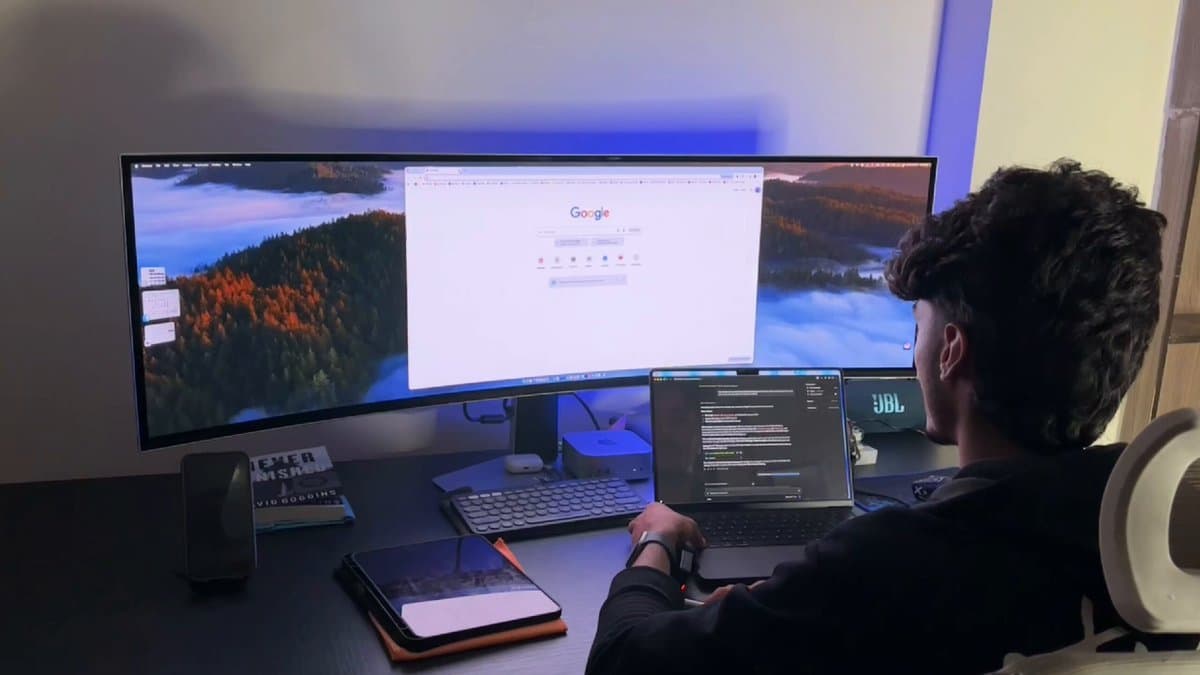
You're my home-network technician, working from this computer. My own smart TV / smart monitor on my own home Wi-Fi. A photo of it (or its Settings → About screen) is attached. I'll press the remote buttons you tell me and tap "Allow" on the screen once. After that, you drive. You're authorized to use only the device's official local controls: ADB for Android TV, Google TV and Fire TV, or Samsung's local remote-control API and Developer Mode for Samsung Tizen screens. Every change must be reversible. 1. You're connected and controlling the screen from this computer 2. Ads and bloat are switched off 3. One open-source app is installed from its official GitHub release 4. One command opens YouTube and plays a video I name, while I watch each step happen on the screen Phase 1: Identify Read the model from the photo. Tell me the OS and which control route you'll use. If it supports neither route, tell me what its official local-network control allows and stay inside that. Phase 2: Connect Install any tools from official sources only. Tell me exactly what to press on my remote to turn on developer mode or debugging, and how to find the screen's IP. If the connection is refused, try pairing mode. On macOS, "No route to host" usually means the terminal needs Local Network access: grant it and retry. Phase 3: Snapshot Before changing anything, save the app list, the current value of every setting you'll touch, and the undo command for each, into one file. Phase 4: Propose Show me the cleanup as a table (change / why / undo) and wait for my OK. - Android: disable (never uninstall) ad, recommendation, feedback and demo apps. Animation scales to 0.5. Private DNS: dns. adguard-dns. com - Samsung Tizen: switch off ad, recommendation and viewing-info options in Settings. Manual DNS: 94.140.14.14 and 94.140.15.15 - Hands off: live-TV and provider apps, the launcher, Play Services, keyboard and input services, firmware, and anything you can't identify. Phase 5: Install Official GitHub releases only. On Android, for example, the TV Bro browser. On Samsung, only apps built for Tizen, installed through Developer Mode. Phase 6: Drive Use real key presses so I see every step. Check the screen (screenshot, uiautomator dump, or running-app state) before pressing OK. Screenshots of a playing video come back blank because of DRM; that's expected. Handle the "Who's watching?" profile screen. Phase 7: Log Run a live monitor that prints each command with a timestamp and shows device logs only while a command runs. Phase 8: Hand over End with a one-page cheat sheet of commands and the full undo list. When a step doesn't need me, keep going. Never type a password or sign in for me. No rooting, flashing or jailbreaking. No pirate apps or sites.
monitor
Compatibility with specific models is unverified.
You're my home-network technician, working from this computer. My own smart TV / smart monitor on my own home Wi-Fi. A photo of it (or its Settings → About screen) is attached. I'll press the remote buttons you tell me and tap "Allow" on the screen once. After that, you drive. You're authorized to use only the device's official local controls: ADB for Android TV, Google TV and Fire TV, or Samsung's local remote-control API and Developer Mode for Samsung Tizen screens. Every change must be reversible. 1. You're connected and controlling the screen from this computer 2. Ads and bloat are switched off 3. One open-source app is installed from its official GitHub release 4. One command opens YouTube and plays a video I name, while I watch each step happen on the screen Phase 1: Identify Read the model from the photo. Tell me the OS and which control route you'll use. If it supports neither route, tell me what its official local-network control allows and stay inside that. Phase 2: Connect Install any tools from official sources only. Tell me exactly what to press on my remote to turn on developer mode or debugging, and how to find the screen's IP. If the connection is refused, try pairing mode. On macOS, "No route to host" usually means the terminal needs Local Network access: grant it and retry. Phase 3: Snapshot Before changing anything, save the app list, the current value of every setting you'll touch, and the undo command for each, into one file. Phase 4: Propose Show me the cleanup as a table (change / why / undo) and wait for my OK. - Android: disable (never uninstall) ad, recommendation, feedback and demo apps. Animation scales to 0.5. Private DNS: dns. adguard-dns. com - Samsung Tizen: switch off ad, recommendation and viewing-info options in Settings. Manual DNS: 94.140.14.14 and 94.140.15.15 - Hands off: live-TV and provider apps, the launcher, Play Services, keyboard and input services, firmware, and anything you can't identify. Phase 5: Install Official GitHub releases only. On Android, for example, the TV Bro browser. On Samsung, only apps built for Tizen, installed through Developer Mode. Phase 6: Drive Use real key presses so I see every step. Check the screen (screenshot, uiautomator dump, or running-app state) before pressing OK. Screenshots of a playing video come back blank because of DRM; that's expected. Handle the "Who's watching?" profile screen. Phase 7: Log Run a live monitor that prints each command with a timestamp and shows device logs only while a command runs. Phase 8: Hand over End with a one-page cheat sheet of commands and the full undo list. When a step doesn't need me, keep going. Never type a password or sign in for me. No rooting, flashing or jailbreaking. No pirate apps or sites.
How did it go? Tips, problems, questions…
Control your smart screen and disable unwanted bloat
Use official local controls to back up settings, disable ads and bloat, install an open-source app, and automate visible YouTube playback on your own smart screen.
Feedback
How did it go? Tips, problems, questions…